Jump to:
- Sending Tests to Students
- When your student opens the link
- Their Assignments
- 🔈 Teach Me
- Games
- The Test
- Adaptive Learning Programs
1. Sending Tests to Students
After you have set up Wordlists, Students, Groups, and assigned tests, you can distribute the following to your students:
- Your Classroom Link. You can obtain this from the Assign Tests page from the side bar.
- Their individual student code. You can obtain this from the Students page from the side bar. Make each student learns only their own code!
2. When your student opens the link
The link you send to your students will look like this:
https://spellingtestbuddy.com/test?studentCode=123456
When your student taps on it, they will be taken to a page like this:
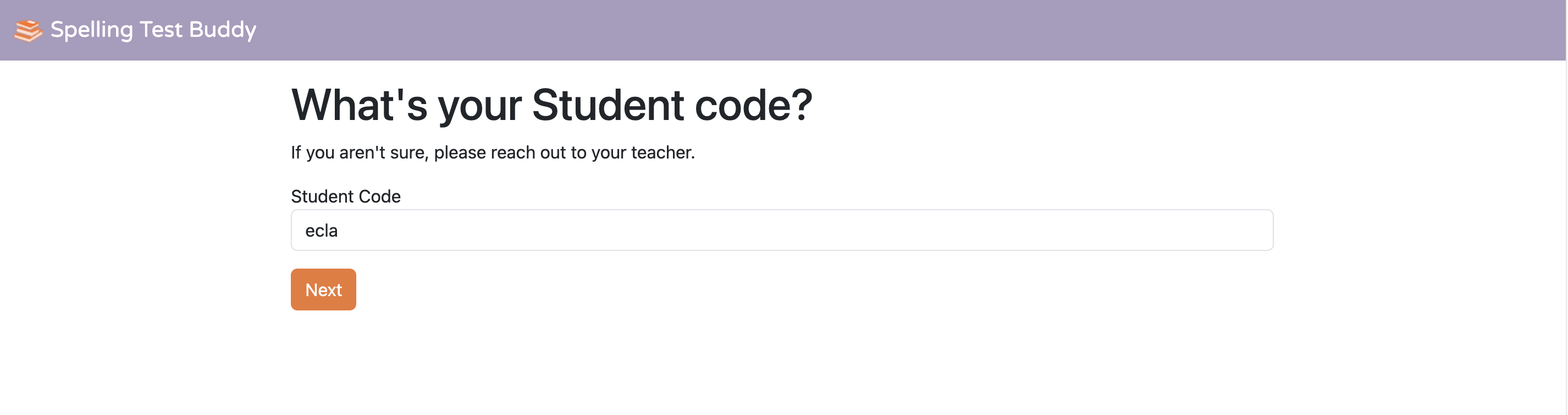
They enter their student code and tap Next.
3. Their Assignments
They will land on their Assignments page.
The Assignments page will contain the practice, games, and tests that the student can work on, organized by Word List, and sorted by the soonest due first.
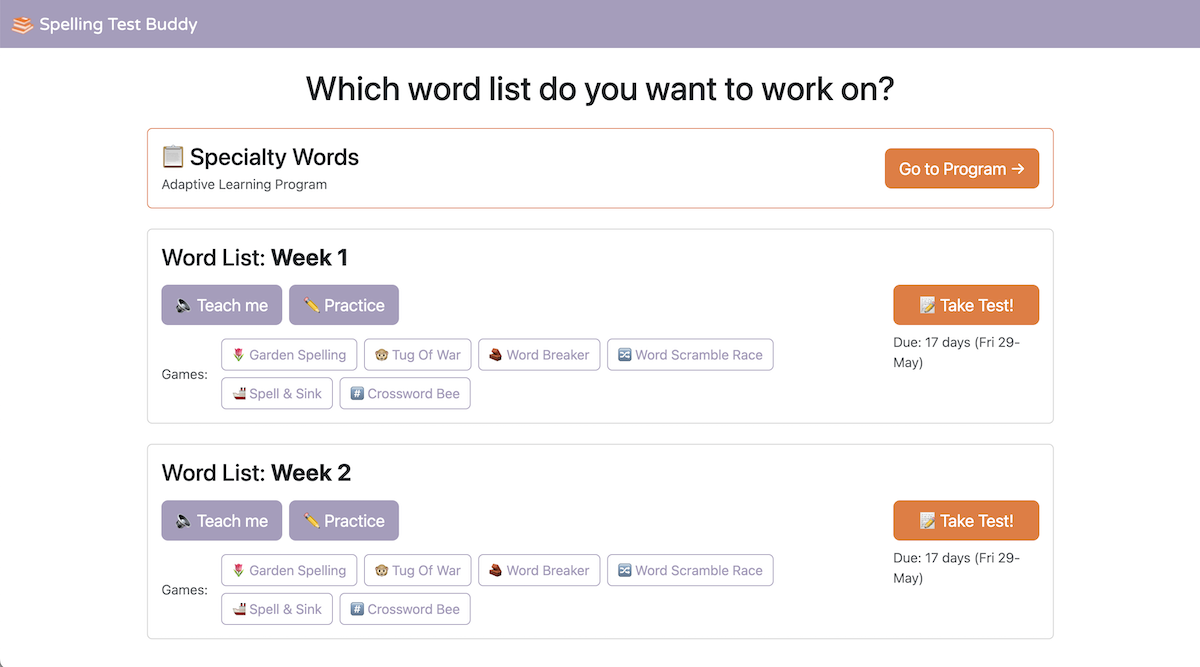
- If a student is a part of an Adaptive Learning Program, that will show up on top. In this case the student is a part of the Specialty Words Adaptive Program.
- Below that, only Word List rows that were assigned as Test or Practice to a student will show up as a row on Assignments. Meaning, if a student was not assigned a practice or test for a given word list, it will not appear.
- “🔈 Teach me” and Games appear when a Practice is assigned.
4. 🔈 Teach Me
🔈 Teach Me is a place for students to learn how to spell each word in their word list.
Students will be given a list of all of their words. They can play through them one at a time to hear the word twice, see how its spelled, and listen to the word in a sentence.
Watch how it works:
5. Games
If you:
- Are using Simple Assignment Mode, or
- Are using Advanced Assignment Mode and have assigned Practice for a wordlist, or
- Have assigned the student into an Adaptive Learning Program
the student will be able to play our collection of spelling games using the Word List.
6. The test
When students log in, they will see the “Upcoming Assignments” page. From there, they can choose to take a Practice Mode test or play games if you’ve assigned them Practice, or to take the Test Mode test that you’ve assigned if you’ve assigned them a Test.
The test looks like this:
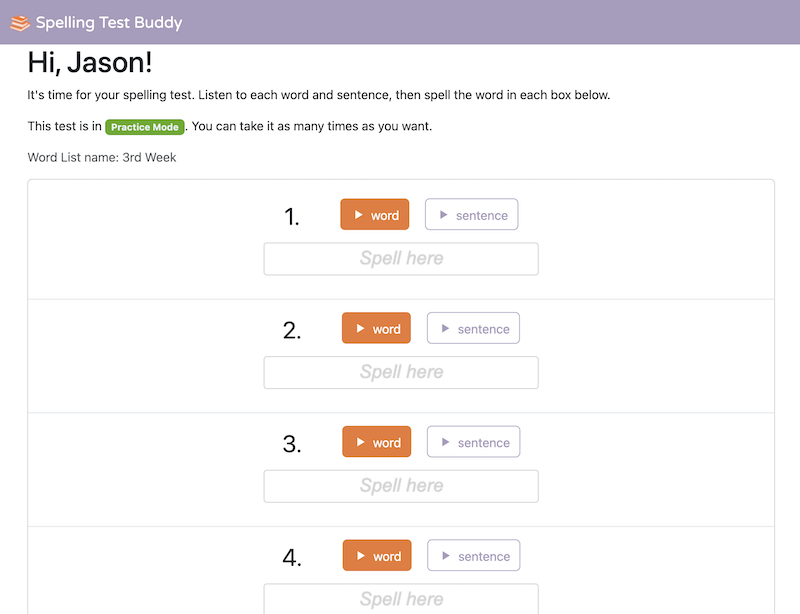
Your student will play each word in the list. They can play the word as many times as they need to. They can also play a sentence that uses the word, to hear it in context. They will then spell the word into the “Spell here” box.
Once they’ve done this for all the words on the list, they tap Submit your answers. They are taken to a grading page to see how well they did, that looks like this:
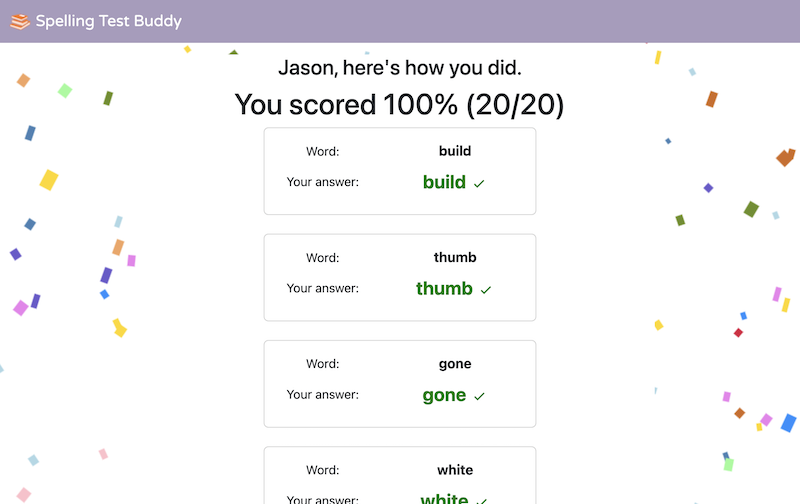
(In this case, the student got 100% correct, and they are rewarded with confetti!)
Their results are saved for you to review in the Reports page.
7. Adaptive Learning Programs
If you have enrolled a student in an Adaptive Learning Program, they will see it listed on their Upcoming Assignments page alongside any traditional assignments.
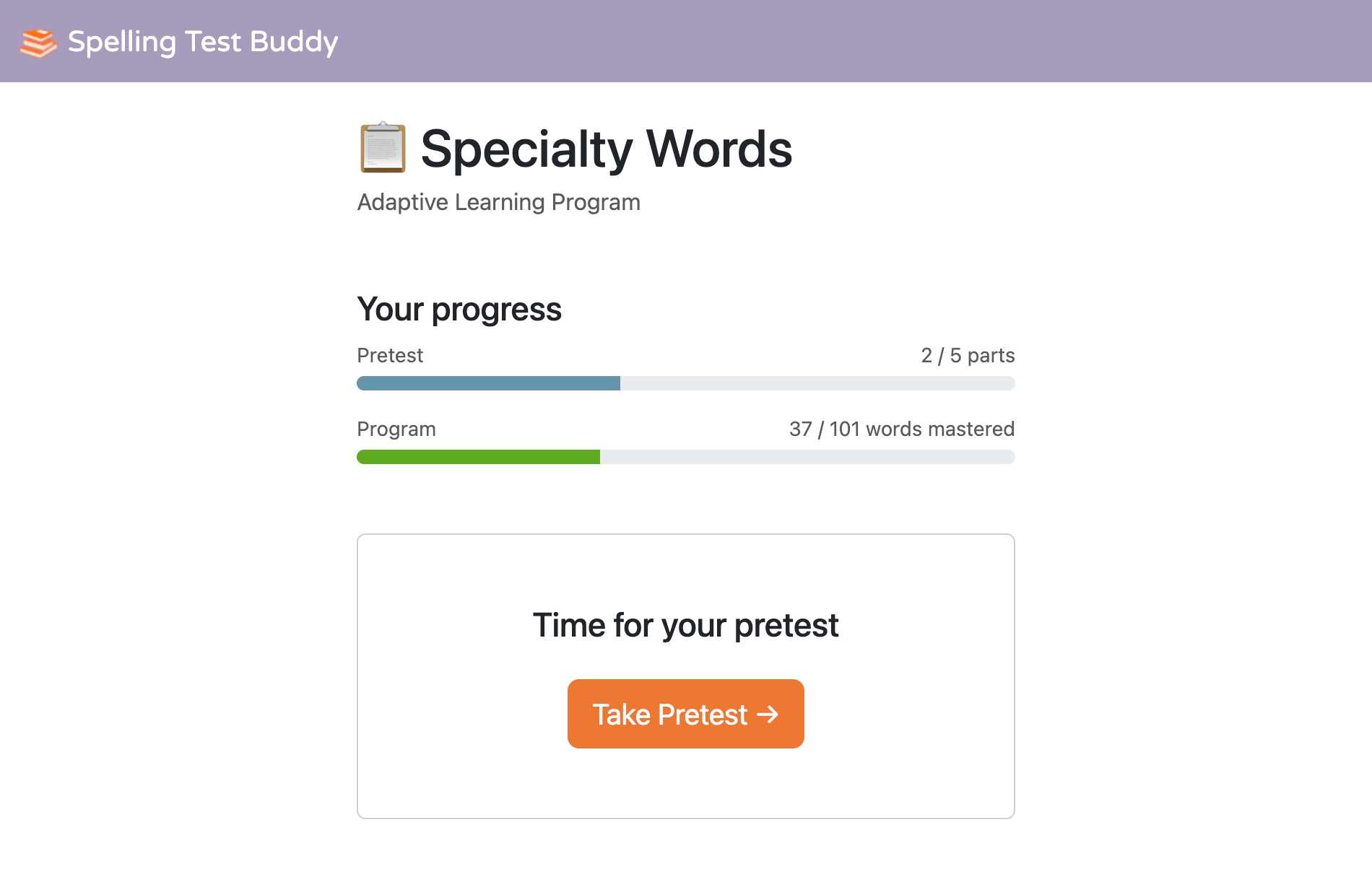
When they tap on it, they will see where they stand in this program.
Diagnostic pre-test
Some programs start with a diagnostic pre-test. The pre-test works through every word in the program to find out which ones the student already knows. Words they spell correctly are marked as mastered and will only come up occasionally for review; words they miss (or haven’t seen yet) go into their daily practice queue. The pre-test is split into short chunks so students can take a break between parts — the Upcoming Assignments page always shows them how many parts they have left.
Each Student’s Daily Session
Once the pre-test is complete (or if the program skips it), students will see a Go to Program button on the Upcoming Assignments page. Tapping it opens their session for the day. The words in each session are chosen individually based on what each student needs to work on — every student in the same class may see a different set.
Depending on how you set up the program, their session will follow one of two paths:
Practice + Test mode
- Take an initial spelling test on today’s words.
- Practice with Teach Me, spelling games, and practice tests.
- Take a final test to close out the session.
Test Only mode
- Take a single spelling test on today’s words. That’s it.
Once a student finishes their session for the day, the page will show “You’re done for today” and their results are saved. The next day they return to a new session with a fresh set of words tailored to where they left off.
How words move through a student’s queue
- Miss a word — it comes back in their next session.
- Spell it correctly several times — the gap between reviews stretches out. It will come up less and less often as it moves into long-term memory.
- Spell it correctly many times in a row — it is marked as mastered and only surfaces occasionally to make sure they haven’t forgotten it.
This is called spaced repetition, and it means each student’s practice time is always spent on the words that need the most attention. Learn more: Spaced Repetition: The Science-Backed Strategy That Helps Students Actually Remember What They Learn.